Adding A Contact
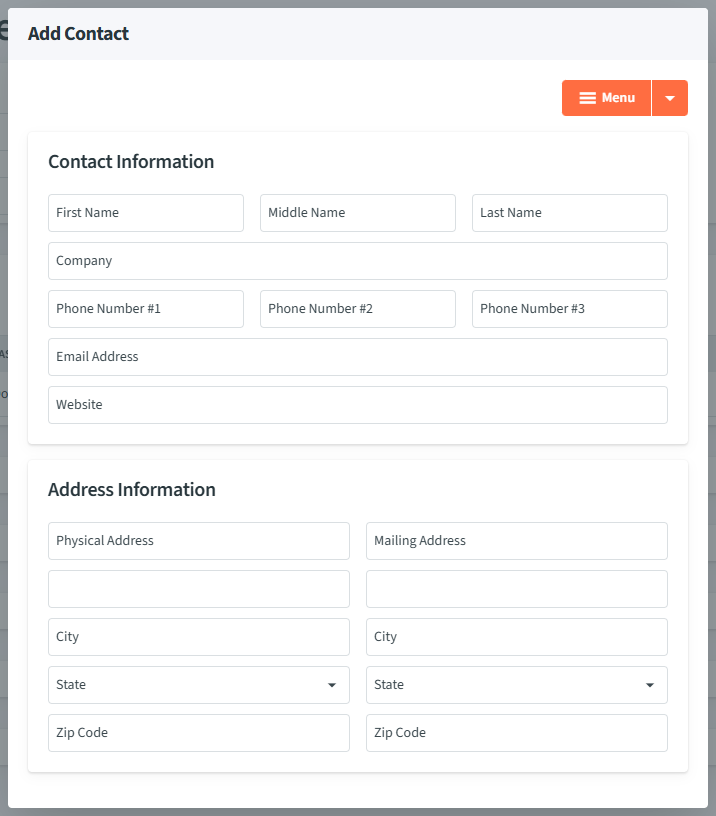
1. Open the merchant profile, open the Contacts section, and press the Add Contact button.

2. When the Add Contact popup appears, enter the contact's name, company, phone numbers, email address, website and addresses. Then open the Menu and choose Save And Close.
Editing A Contact
1. Click the pencil icon beside the contact you want to edit, make your changes, then open the Menu and choose Save And Close.

Deleting A Contact
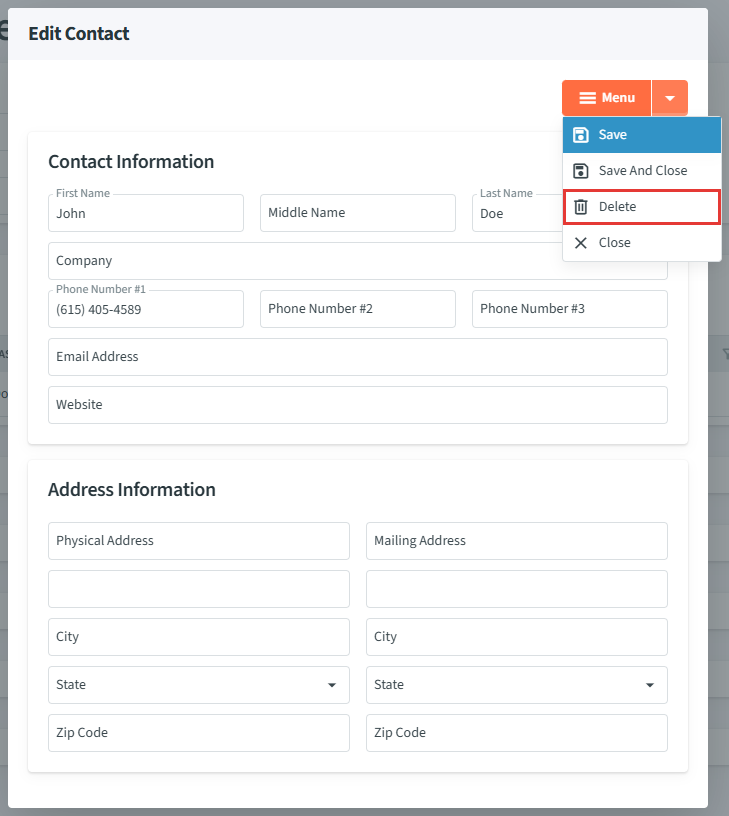
1. Open the contact, open the Menu and choose Delete.
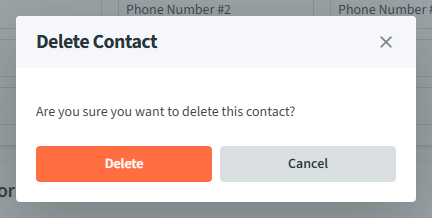
2. When the confirmation popup appears, press Delete to remove the contact.
Was this article helpful?
That’s Great!
Thank you for your feedback
Sorry! We couldn't be helpful
Thank you for your feedback
Feedback sent
We appreciate your effort and will try to fix the article