Notes let you keep a record about the merchant and remind you when something needs a follow-up.
Adding A Note
1. Open the merchant profile, open the Notes section, and press the Add Note button.

2. When the Add Note popup appears, type your note.
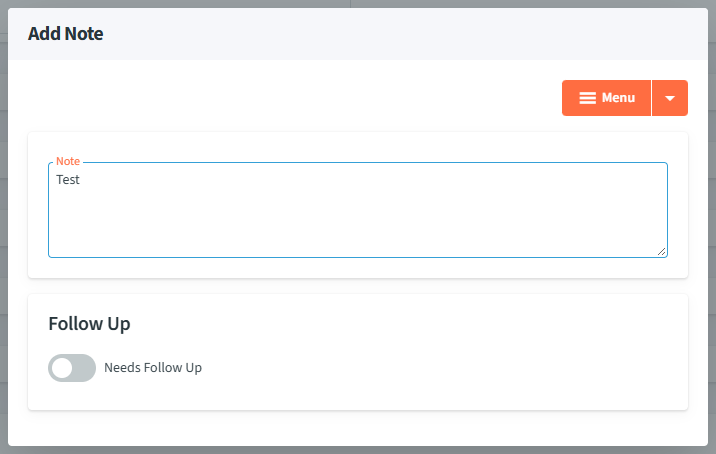
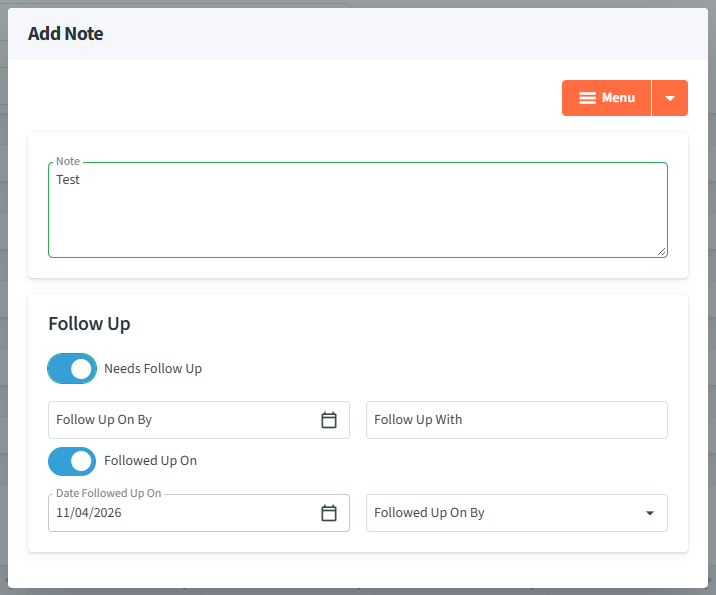
3. If the note needs a follow-up, turn on Needs Follow Up, choose the date to follow up on or by, and enter who to follow up with. Once the follow-up has been done, turn on Followed Up On. Today's date is filled in for you, and you can choose who followed up. Then open the Menu and choose Save And Close.
Editing A Note
1. In the Notes section, click the pencil icon beside the note you want to edit.

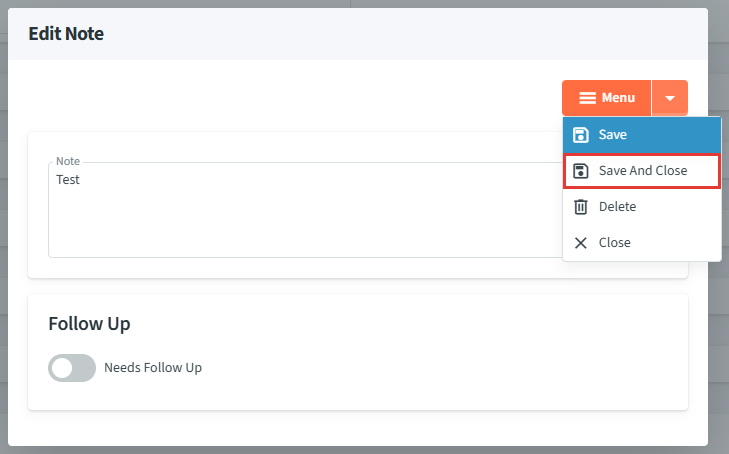
2. After making your changes, open the Menu and choose Save And Close.
Deleting A Note
1. Open the note, open the Menu and choose Delete.
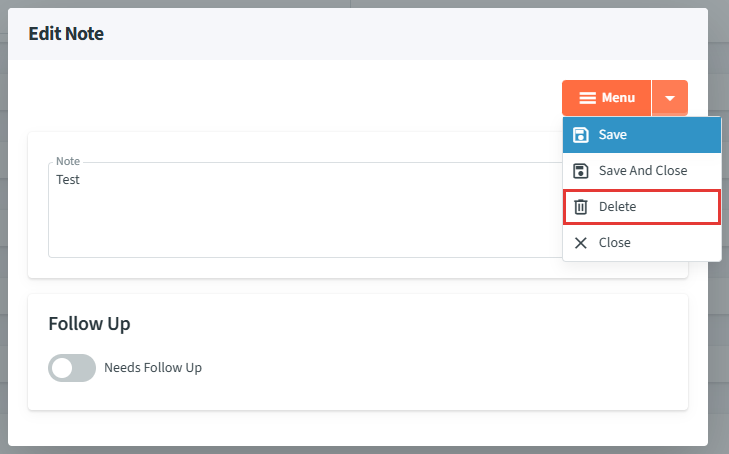
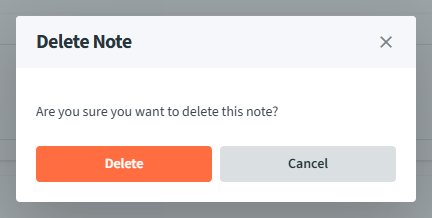
2. When the confirmation popup appears, press Delete to remove the note.
Was this article helpful?
That’s Great!
Thank you for your feedback
Sorry! We couldn't be helpful
Thank you for your feedback
Feedback sent
We appreciate your effort and will try to fix the article