An advertisement is a single ad that can be placed in one or more catalogs. Each advertisement is a Full Page, Half Page or Quarter Page ad. The Preview on the right side of the advertisement popup shows how the ad will look in the catalog as you make changes.
Adding An Advertisement
1. Open the advertiser, open the Advertisements section, and press the Add Advertisement button.

2. When the Add Advertisement popup appears, choose the Ad Size and enter the Advertisement Name. The Kicker, Headline and Tagline are the lines of text shown on the ad, and the Click URL is the web address a visitor is taken to when they click the ad. Color From, Color To, Accent Color and Text Color set the ad's colors when it has no image.
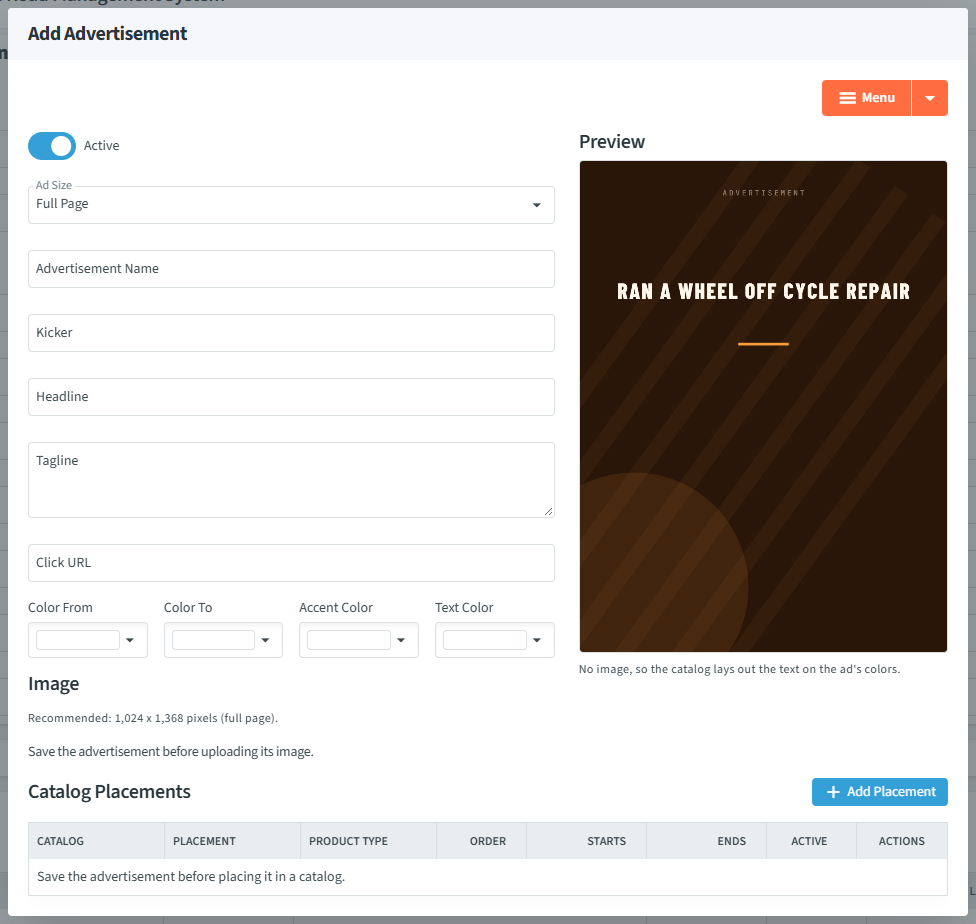
3. Open the Menu and choose Save. Once the advertisement has been saved, you can press Upload Image to add a picture. The recommended image size is shown under Image: 1,024 x 1,368 pixels for a full page ad, 1,024 x 684 for a half page and 512 x 684 for a quarter page. Remove Image goes back to showing the ad's text on its colors.
Editing An Advertisement
1. In the Advertisements section, click the pencil icon beside the advertisement you want to edit.

2. After making your changes, open the Menu and choose Save And Close.

Deleting An Advertisement
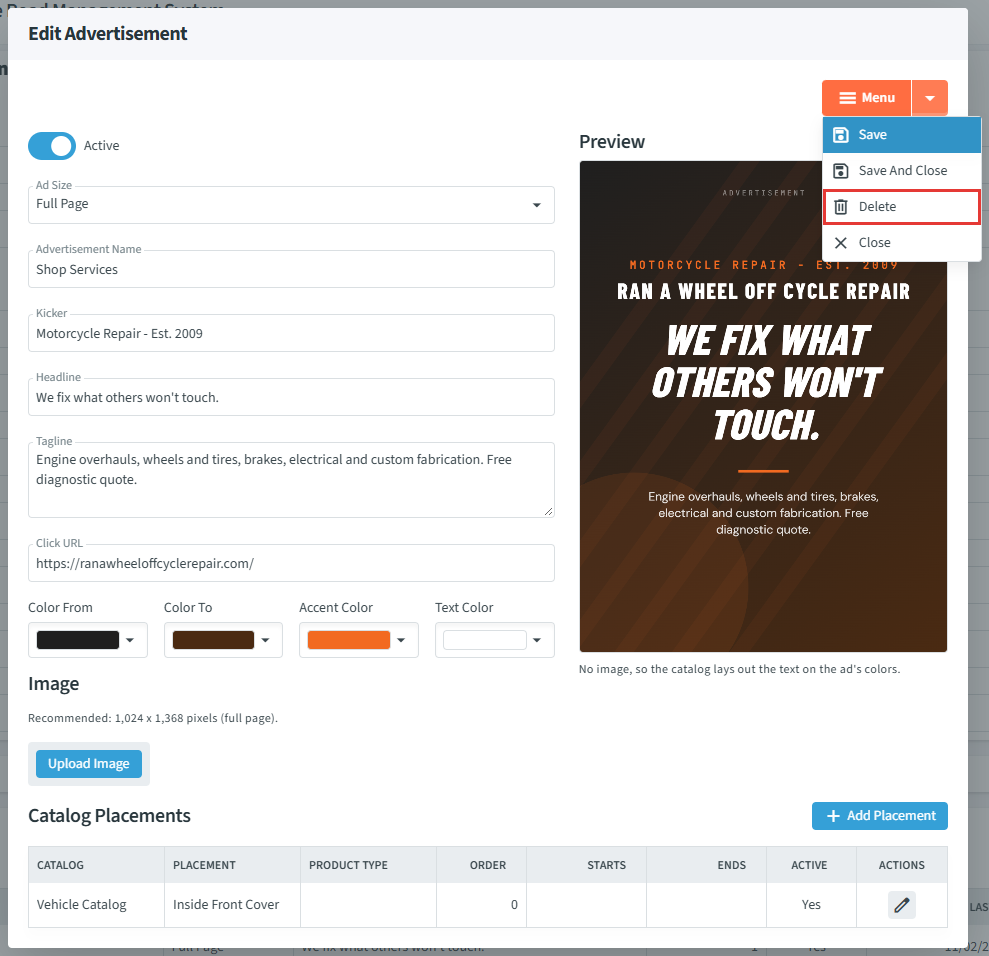
1. Open the advertisement, open the Menu and choose Delete.
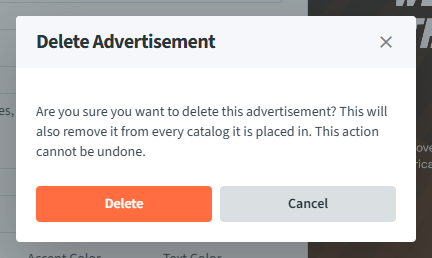
2. When the confirmation popup appears, press Delete. The advertisement will also be removed from every catalog it is placed in.
Advertisement Placements
A placement puts an advertisement into a catalog. There are four kinds of placement:
• Inside Front Cover and Inside Back Cover: the inside of the catalog's covers.
• Section Opener: the page facing a product type's divider.
• Filler: a page between sections. Half page and quarter page ads can only be fillers. Covers and section openers take full page ads.
Adding A Placement
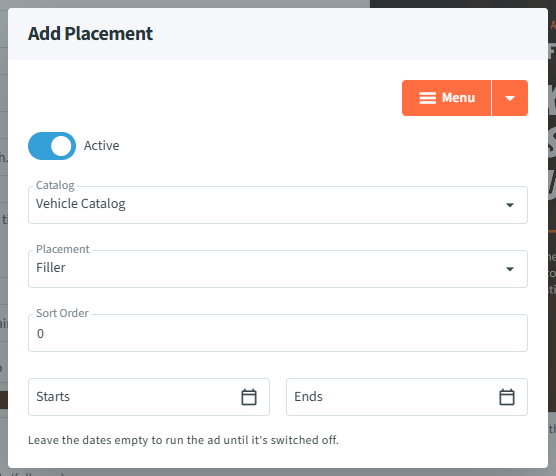
1. Open the advertisement, and in the Catalog Placements section press the Add Placement button. The advertisement must be saved before it can be placed in a catalog.

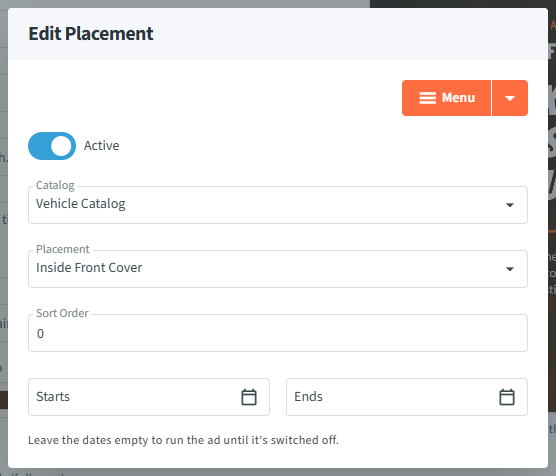
2. When the Add Placement popup appears, select the Catalog and the Placement. For a section opener, choose the Product Type whose divider the ad should face, or leave it empty to face any divider. Use Sort Order to set the order of ads in the same placement. Enter Starts and Ends dates to run the ad for a limited time, or leave them empty to run it until Active is turned off. Then open the Menu and choose Save And Close.
Editing A Placement
1. In the Catalog Placements section, click the pencil icon beside the placement you want to edit.

2. After making your changes, open the Menu and choose Save And Close.
Deleting A Placement
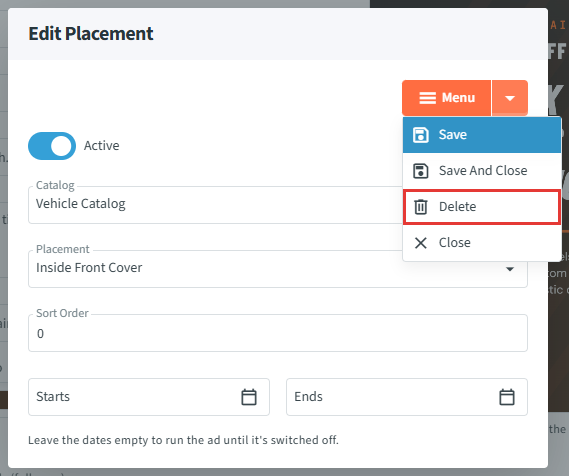
1. Open the placement, open the Menu and choose Delete.
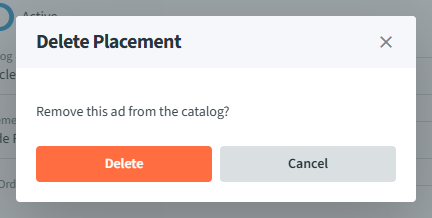
2. When the confirmation popup appears, press Delete. This only removes the ad from that catalog; the advertisement itself is kept.
Was this article helpful?
That’s Great!
Thank you for your feedback
Sorry! We couldn't be helpful
Thank you for your feedback
Feedback sent
We appreciate your effort and will try to fix the article