The Rubber Meets The Road Management System allows you to review the orders placed on your website, update an order's status and addresses, look at each item that was ordered, record payments, chargebacks and refunds, and keep notes about the order.
A few things work the same way on every screen in this chapter:
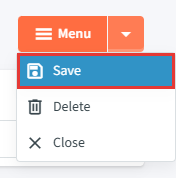
• The Menu button in the top right corner holds the screen's actions, such as Save, Delete and Close. Click the arrow on the right side of the Menu button to open it.
• Sections such as Ship To, Order Details and Payments start closed. Click the + at the right end of a section's title bar to open it.
• Popup windows for editing do not have an X in the corner. To close one without saving, open its Menu and choose Close.
Note: Customer names, addresses, phone numbers and email addresses, and the payment processor's details, are blurred in the pictures in this chapter.
Viewing Orders
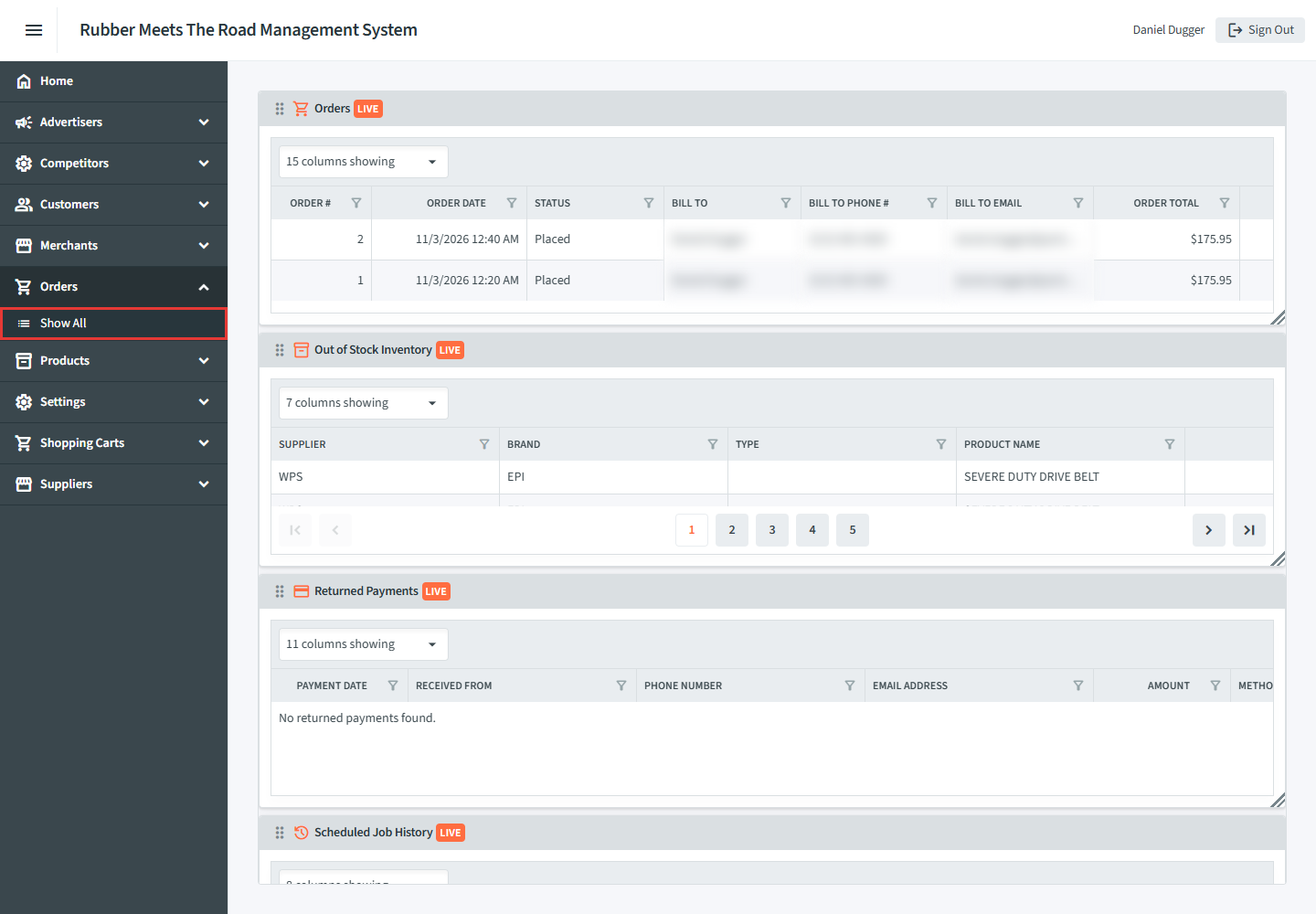
1. Click the menu button in the top left corner, click Orders to expand that section, and then click Show All.
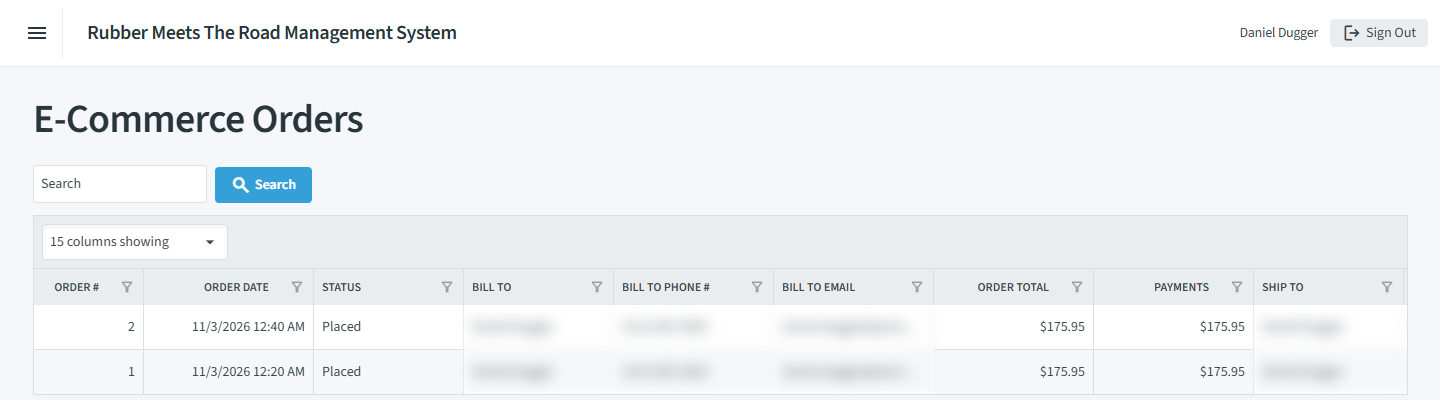
2. The E-Commerce Orders list will appear, showing each order's number, date and status, who it was billed and shipped to, the order total, and the payments received. Use the Search box to find an order. The columns dropdown above the list lets you choose which columns are shown, and each column can be filtered with the filter icon in its heading.
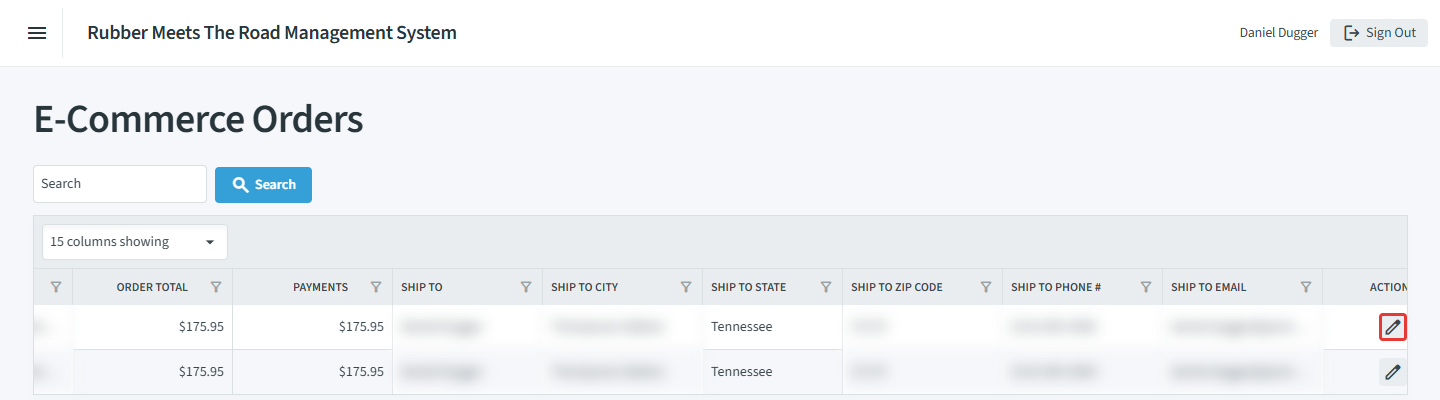
3. To open an order, scroll to the right end of its row and click the button with the pencil icon.
Order Information
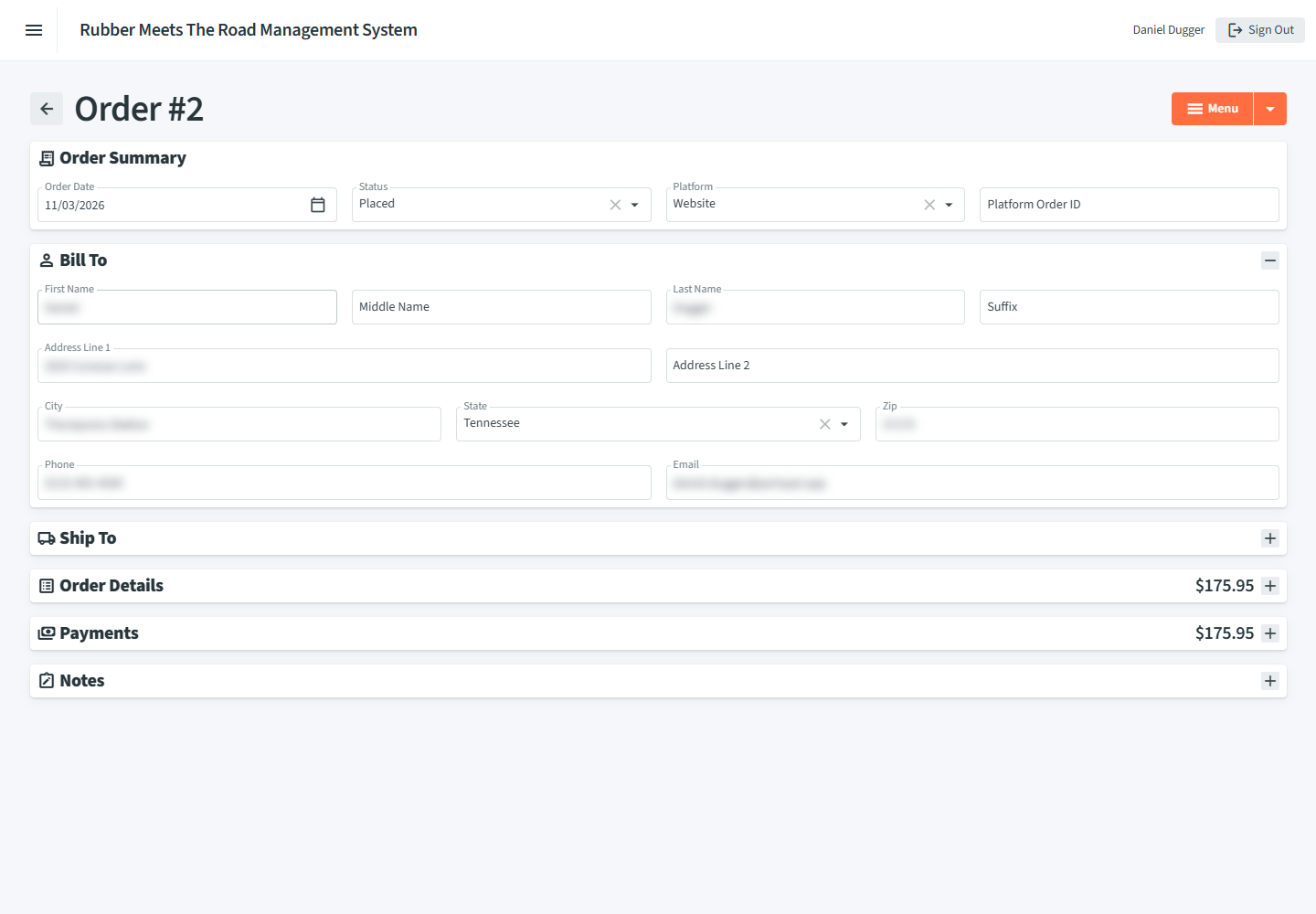
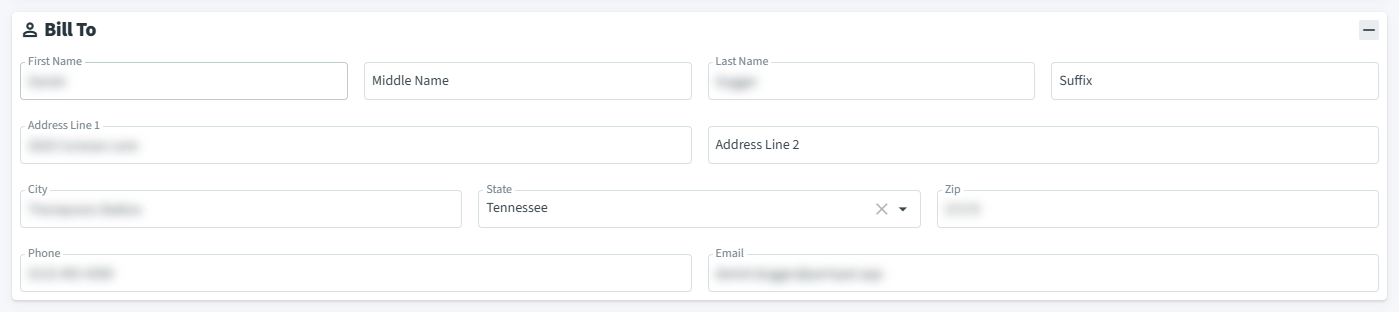
1. When the order loads, the Order Summary at the top shows the order date, its Status, the Platform it was placed on, and the Platform Order ID. To change the status, choose a new one from the Status list. The Bill To section below holds the billing name, address, phone number and email address.
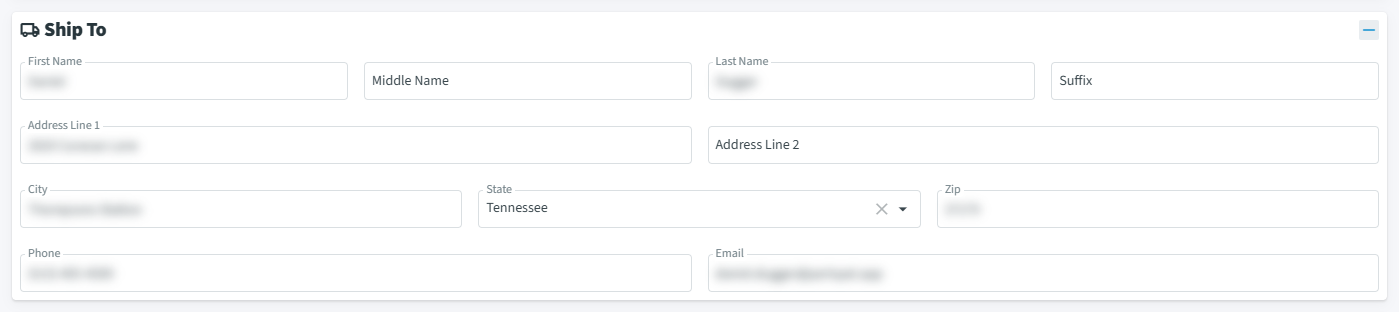
2. Open the Ship To section to view or change where the order is being shipped.
3. After making your changes, open the Menu and choose Save.
Order Details
The Order Details section lists each item in the order, with the quantity, description, list price, discount and total. The section's title bar shows the order's total.
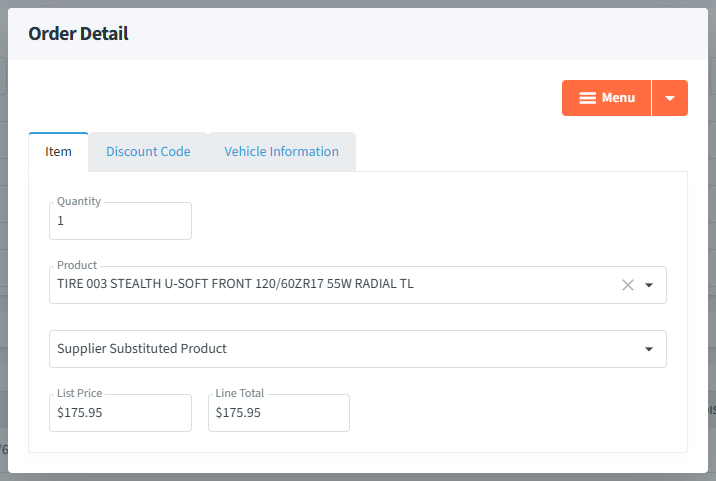
1. Open the Order Details section and click the pencil icon beside an item to see its details.

2. The Item tab shows the product ordered, its quantity, list price and line total. If the supplier sent a different product in its place, choose it under Supplier Substituted Product.
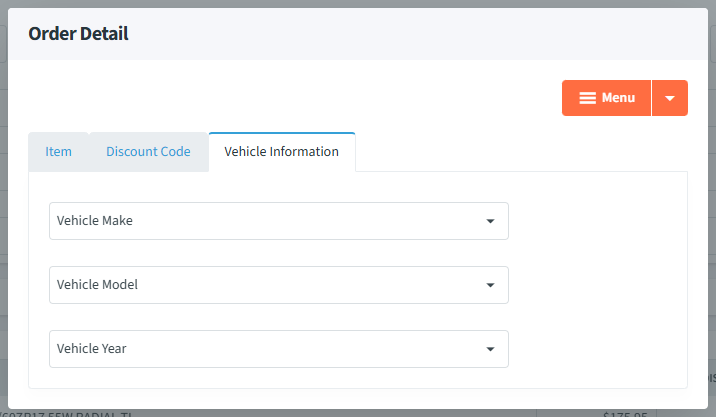
3. The Vehicle Information tab shows the vehicle the customer bought the item for.
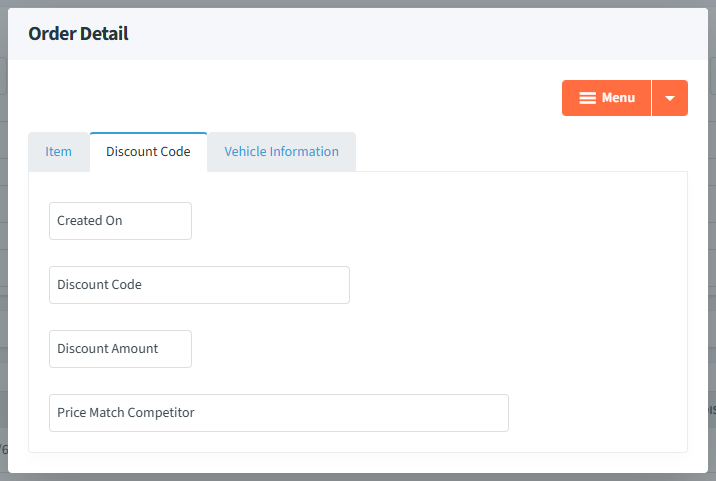
4. The Discount Code tab shows any discount code used on the item, the discount amount, and the competitor whose price was matched, if any. When you are done, open the Menu and choose Save And Close, or Close to leave without changes. Delete in the same menu removes the item from the order.
Payments
The Payments section lists the payments received for the order, with the date, method, amount, reference and receipt numbers, and whether the payment was returned or refunded. The section's title bar shows the total paid.
Adding A Payment
1. Open the Payments section and press the Add Payment button.

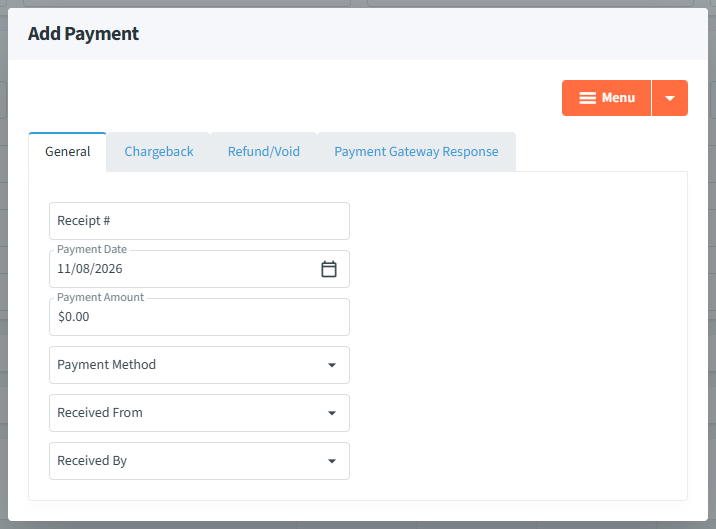
2. When the Add Payment popup appears, enter the Receipt #, Payment Date and Payment Amount, and choose the Payment Method, who the payment was Received From, and who it was Received By. Then open the Menu and choose Save And Close.
Viewing Or Editing A Payment
1. Click the pencil icon beside the payment you want to open.

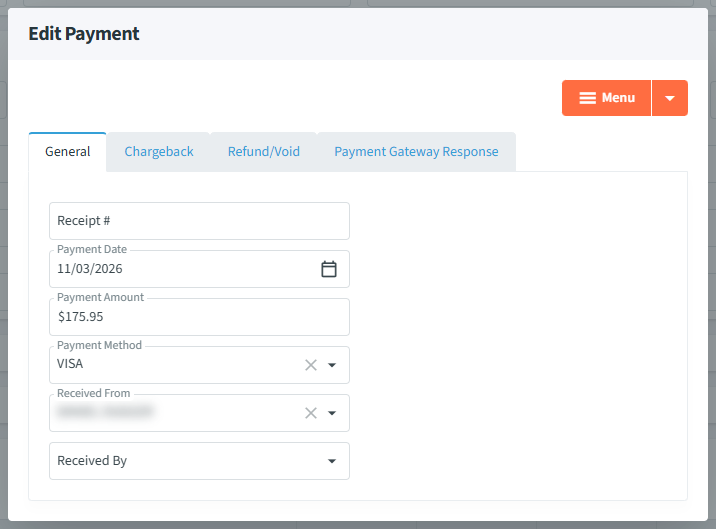
2. The General tab holds the payment's receipt number, date, amount and method, and who it was received from and by.
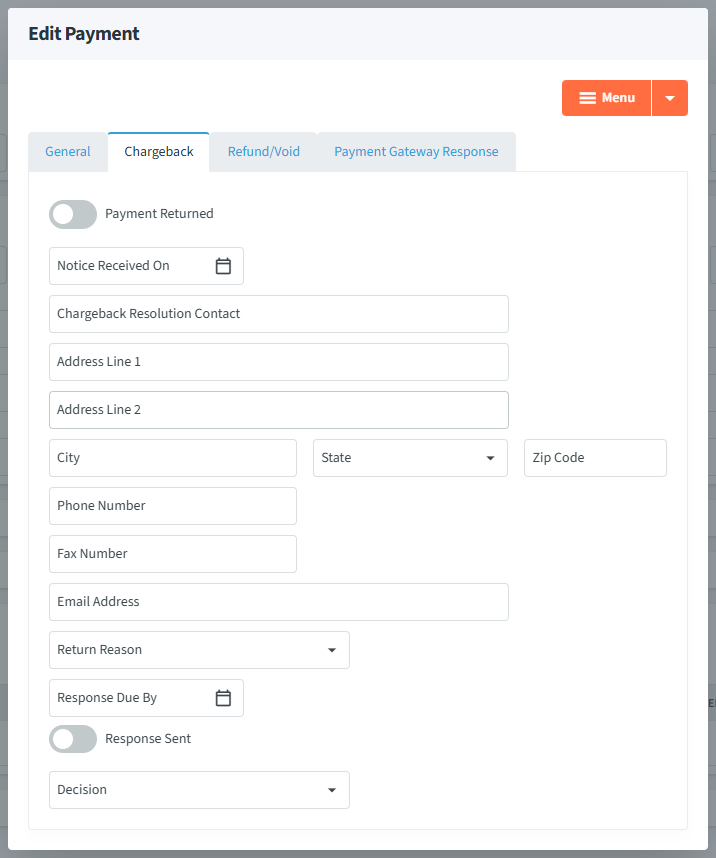
3. If the customer's bank returns the payment, use the Chargeback tab to keep track of it. Turn on Payment Returned and enter the date the notice was received, the chargeback resolution contact and their address, the Return Reason, and the date a response is due. Once you have responded, turn on Response Sent, and record the Decision when it arrives.
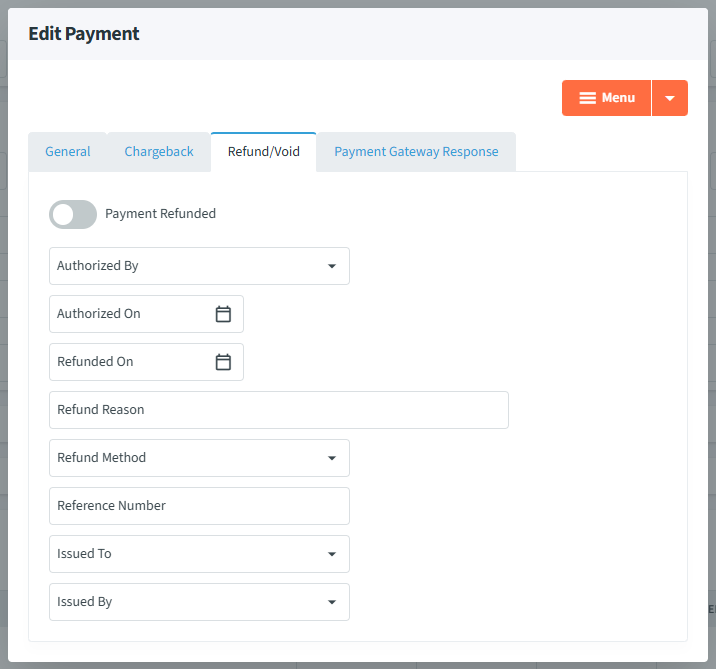
4. If you refund the payment, use the Refund/Void tab to record it. Turn on Payment Refunded and enter who authorized the refund and when, the date it was refunded, the reason, how it was refunded, its reference number, and who it was issued to and by.
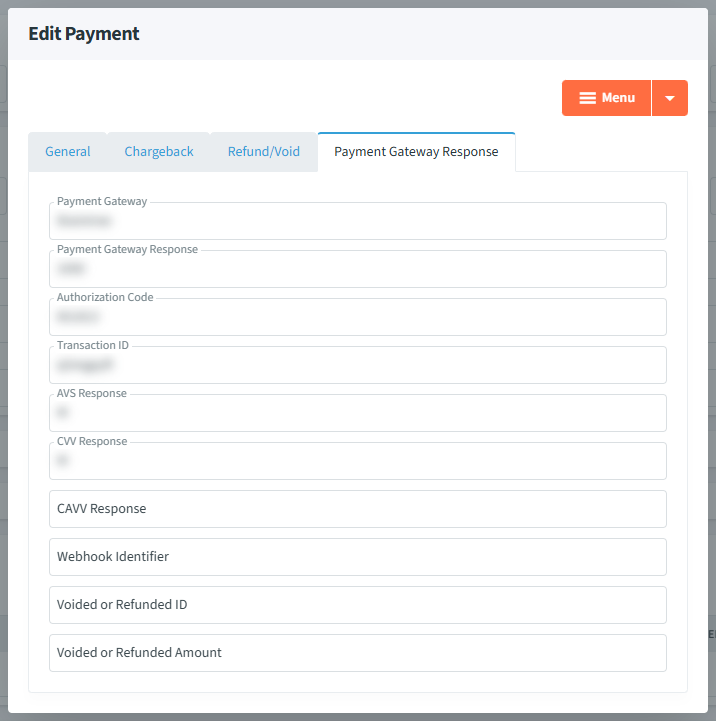
5. The Payment Gateway Response tab shows what the payment processor reported for card payments taken on your website, such as the authorization code and transaction ID. These details cannot be changed.
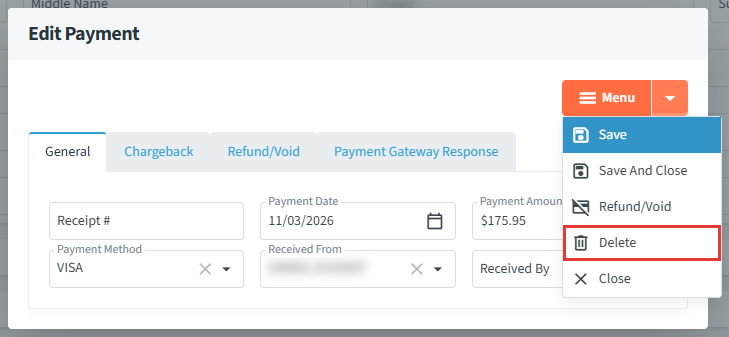
After making any changes, open the Menu and choose Save And Close. The Refund/Void choice in this menu is not available yet; record refunds on the Refund/Void tab instead.
Deleting A Payment
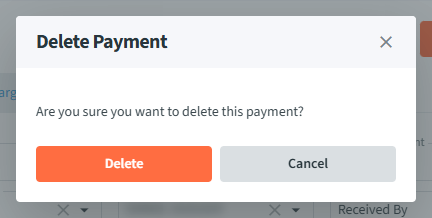
1. Open the payment, open the Menu and choose Delete.
2. When the confirmation popup appears, press Delete to remove the payment.
Deleting An Order
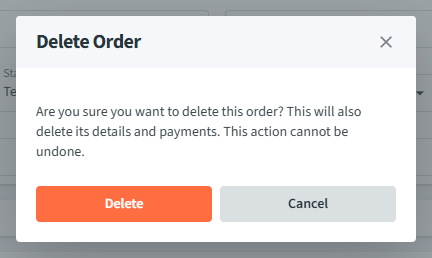
Deleting an order also deletes its details and its payments. This cannot be undone.
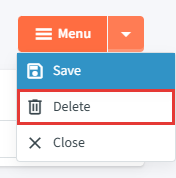
1. Open the order, open the Menu and choose Delete.
2. When the confirmation popup appears, press Delete to permanently delete the order, or Cancel to keep it.
Notes
Notes let you keep a record about the order and remind you when something needs a follow-up.
Adding A Note
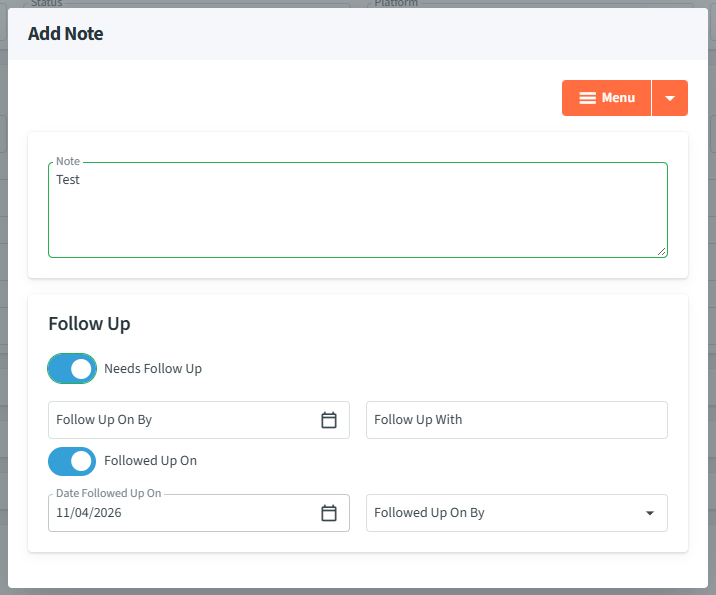
1. Open the order, open the Notes section, and press the Add Note button.

2. When the Add Note popup appears, type your note.
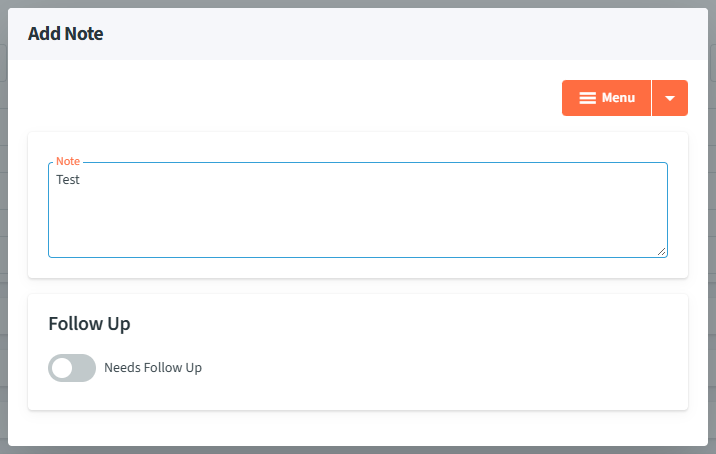
3. If the note needs a follow-up, turn on Needs Follow Up, choose the date to follow up on or by, and enter who to follow up with. Once the follow-up has been done, turn on Followed Up On. Today's date is filled in for you, and you can choose who followed up. Then open the Menu and choose Save And Close.
Editing A Note
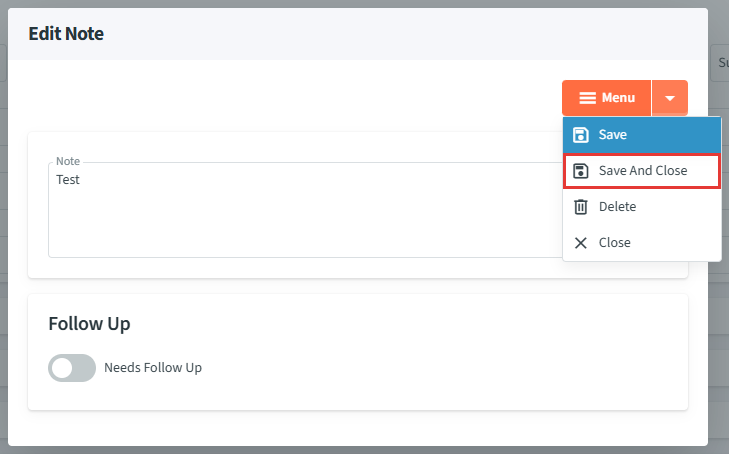
1. In the Notes section, click the pencil icon beside the note you want to edit.

2. After making your changes, open the Menu and choose Save And Close.
Deleting A Note
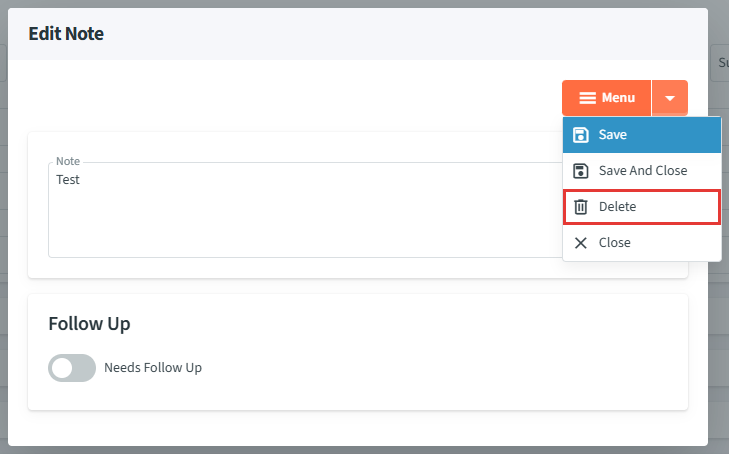
1. Open the note, open the Menu and choose Delete.
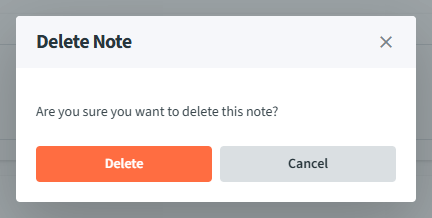
2. When the confirmation popup appears, press Delete to remove the note.
Was this article helpful?
That’s Great!
Thank you for your feedback
Sorry! We couldn't be helpful
Thank you for your feedback
Feedback sent
We appreciate your effort and will try to fix the article