Each website menu, such as your main header menu or your footer, is built in three levels: headers across the top, the items that appear under a header, and sub items under an item. Headers, items and sub items are all edited right in their lists.
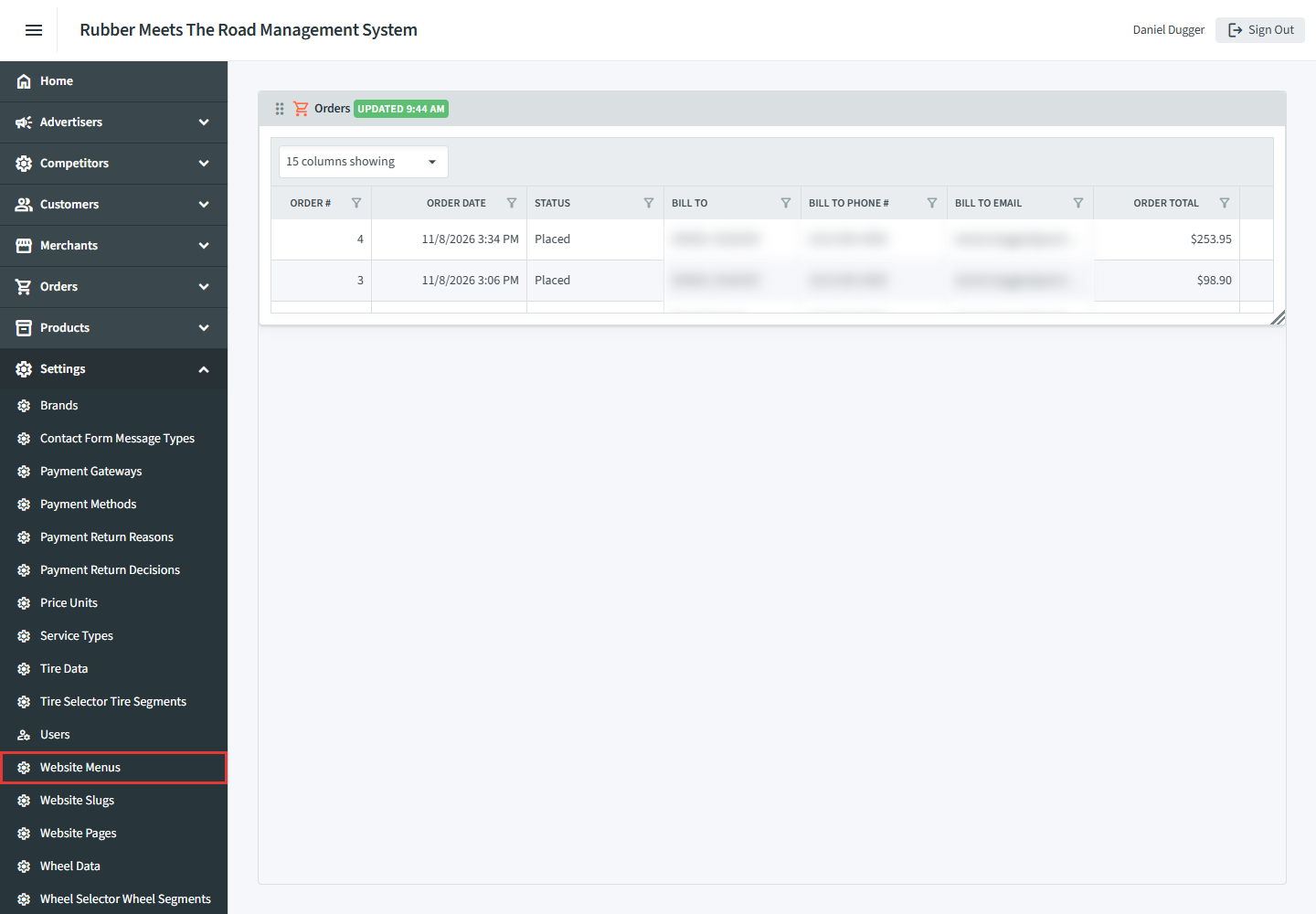
1. Click the menu button in the top left corner, click Settings to expand that section, and then click Website Menus.
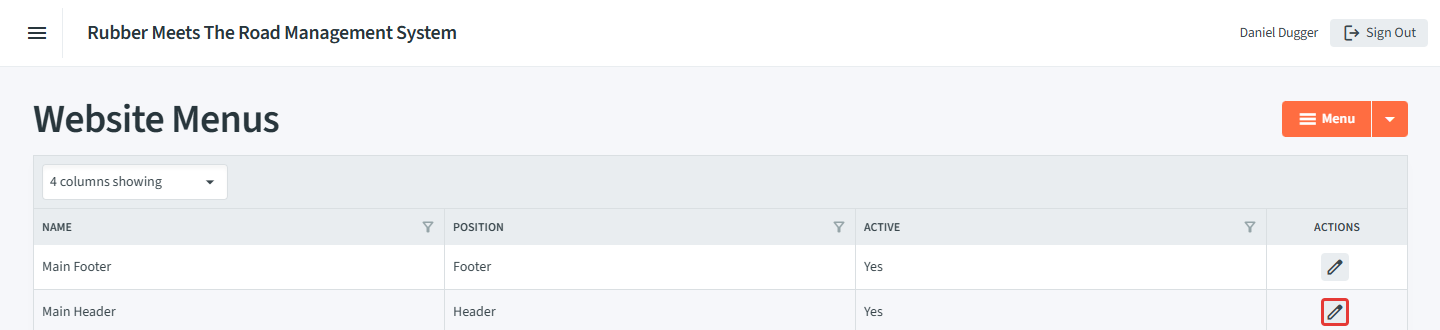
2. The list shows each menu, its Position (header or footer) and whether it is active. Click the pencil icon to open a menu, or open the Menu and choose New to add one.
Menu Headers
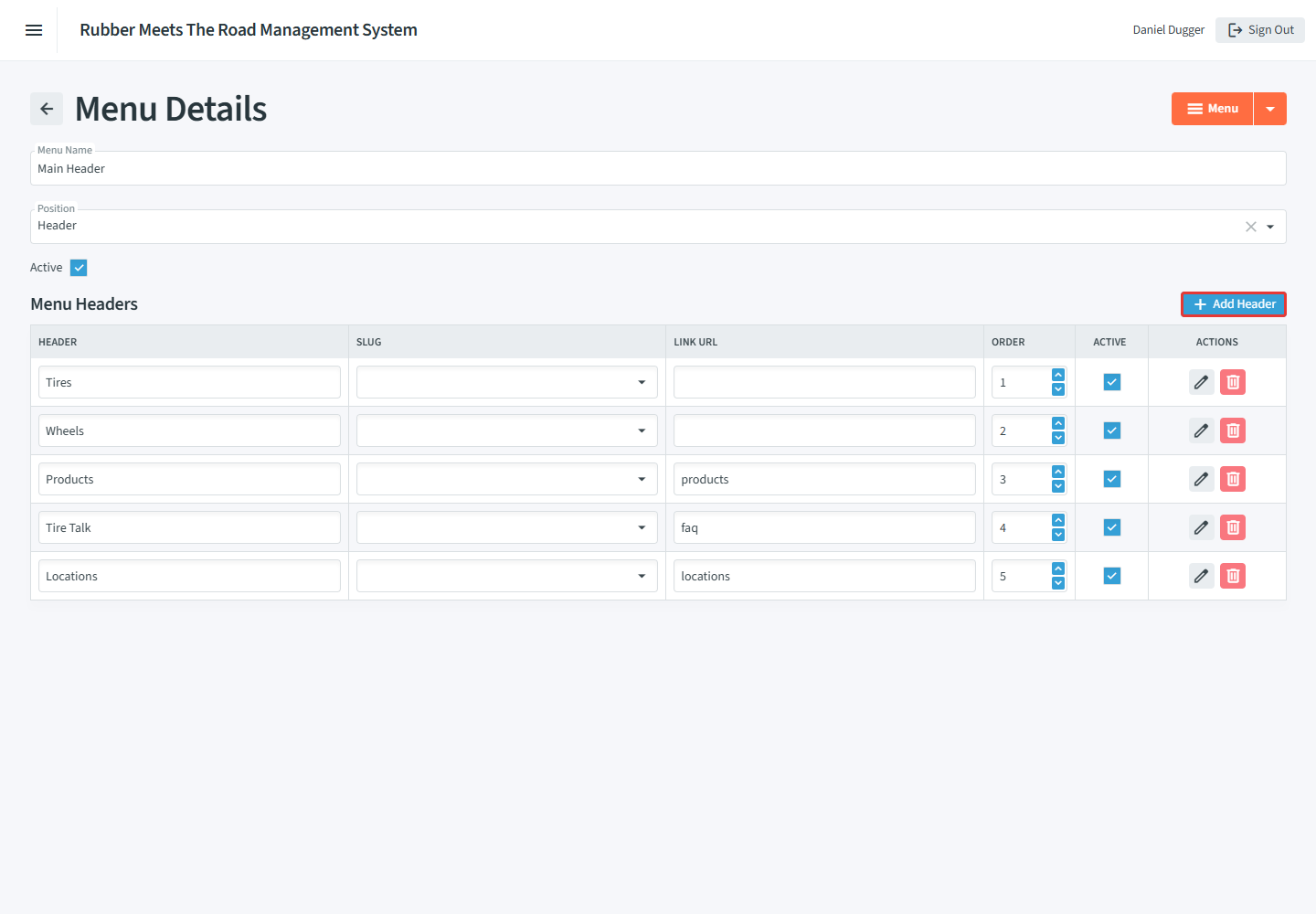
1. The Menu Details screen holds the Menu Name, its Position and Active, and the list of Menu Headers. Change a header's text, the Slug or Link URL it opens, its Order and Active right in the list. Press Add Header to add a row. Then open the Menu and choose Save.
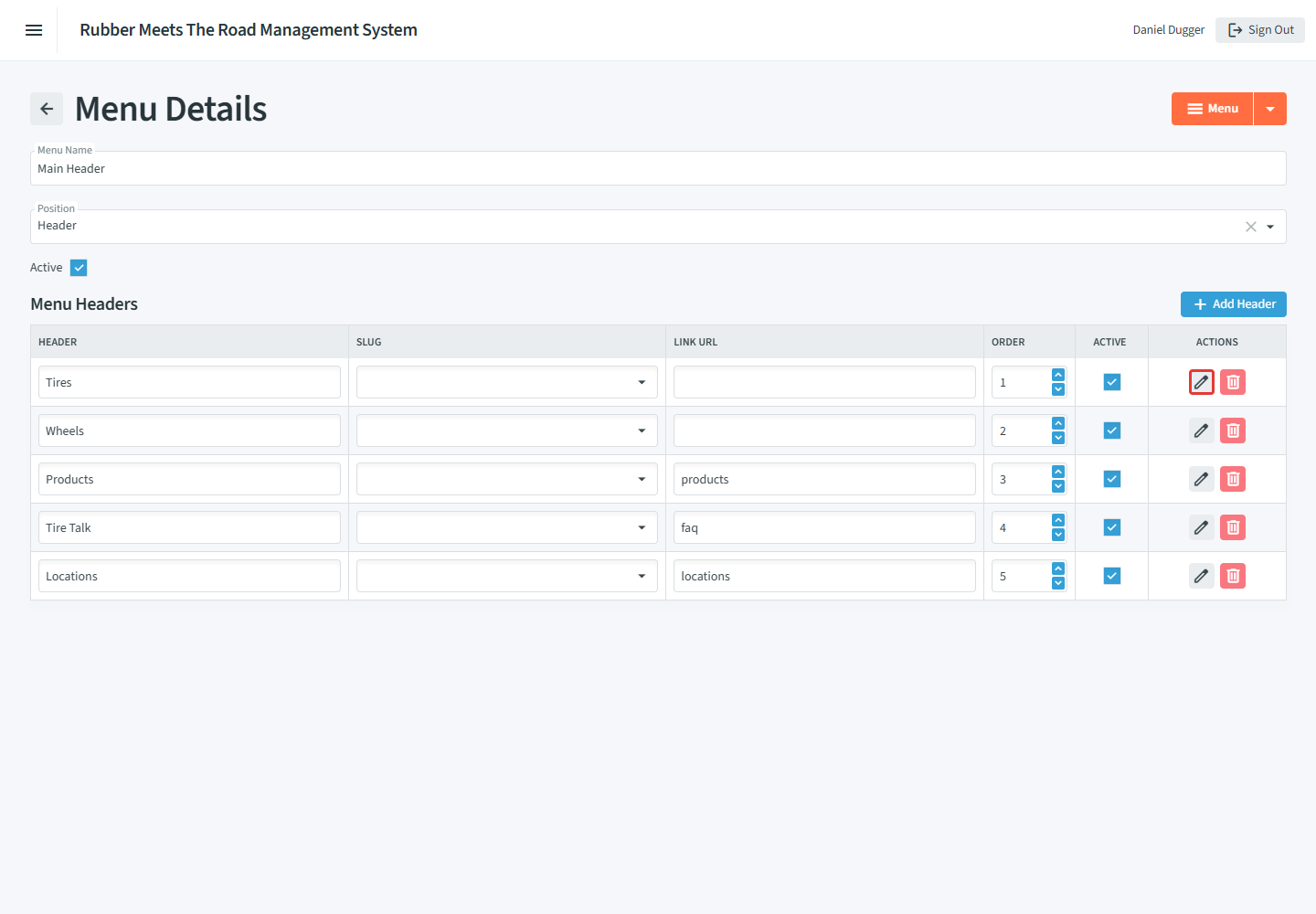
2. To work on the items under a header, click the pencil icon on its row. The red trash can deletes the header and all of its items, after asking you first.
Menu Items
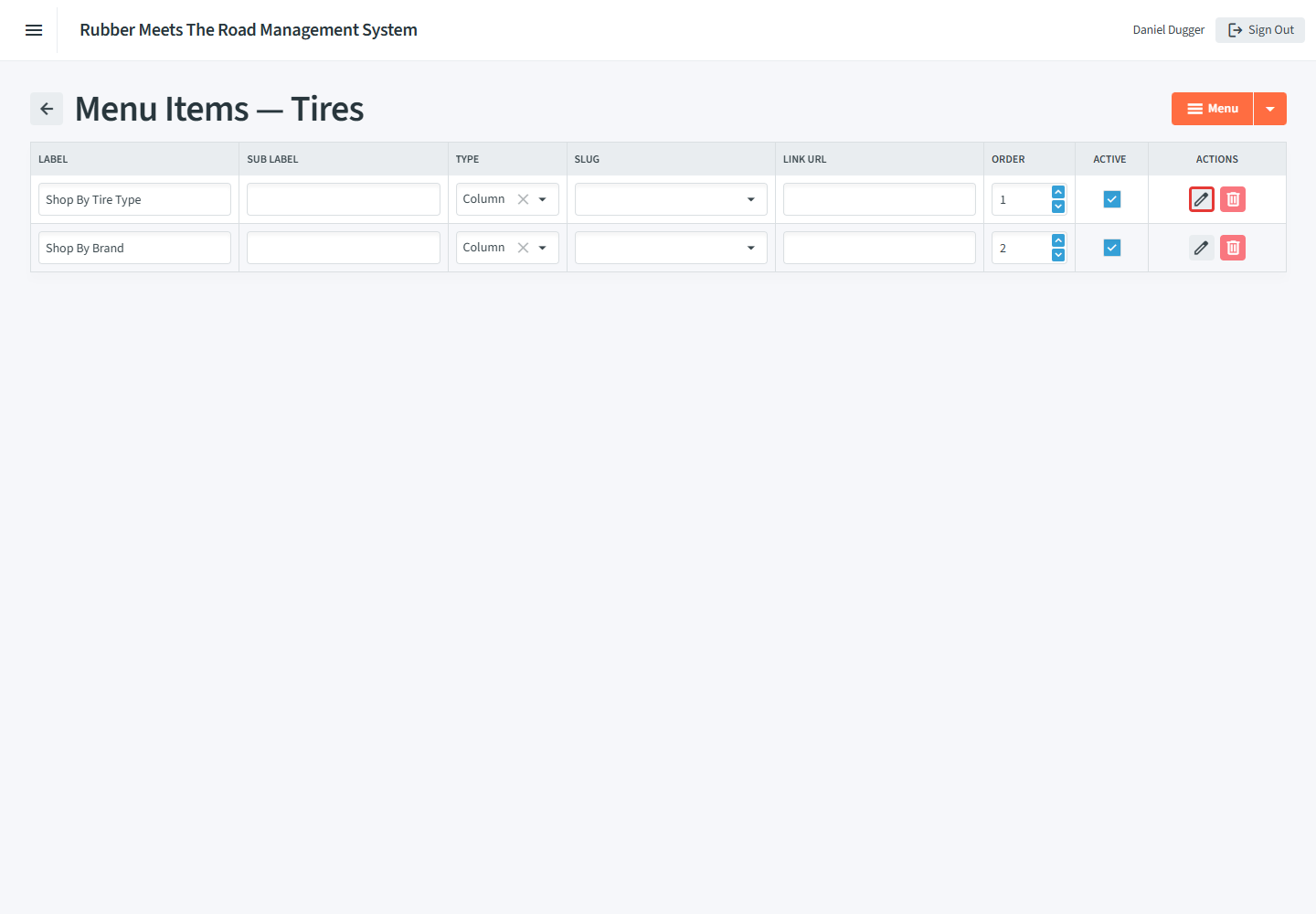
1. The Menu Items screen lists the items under the header, each with its Label, Sub Label, Type, the Slug or Link URL it opens, its Order and Active. Change them right in the list, then open the Menu and choose Save. Click an item's pencil icon to work on its sub items; the red trash can deletes the item and its sub items.
Adding A Menu Item
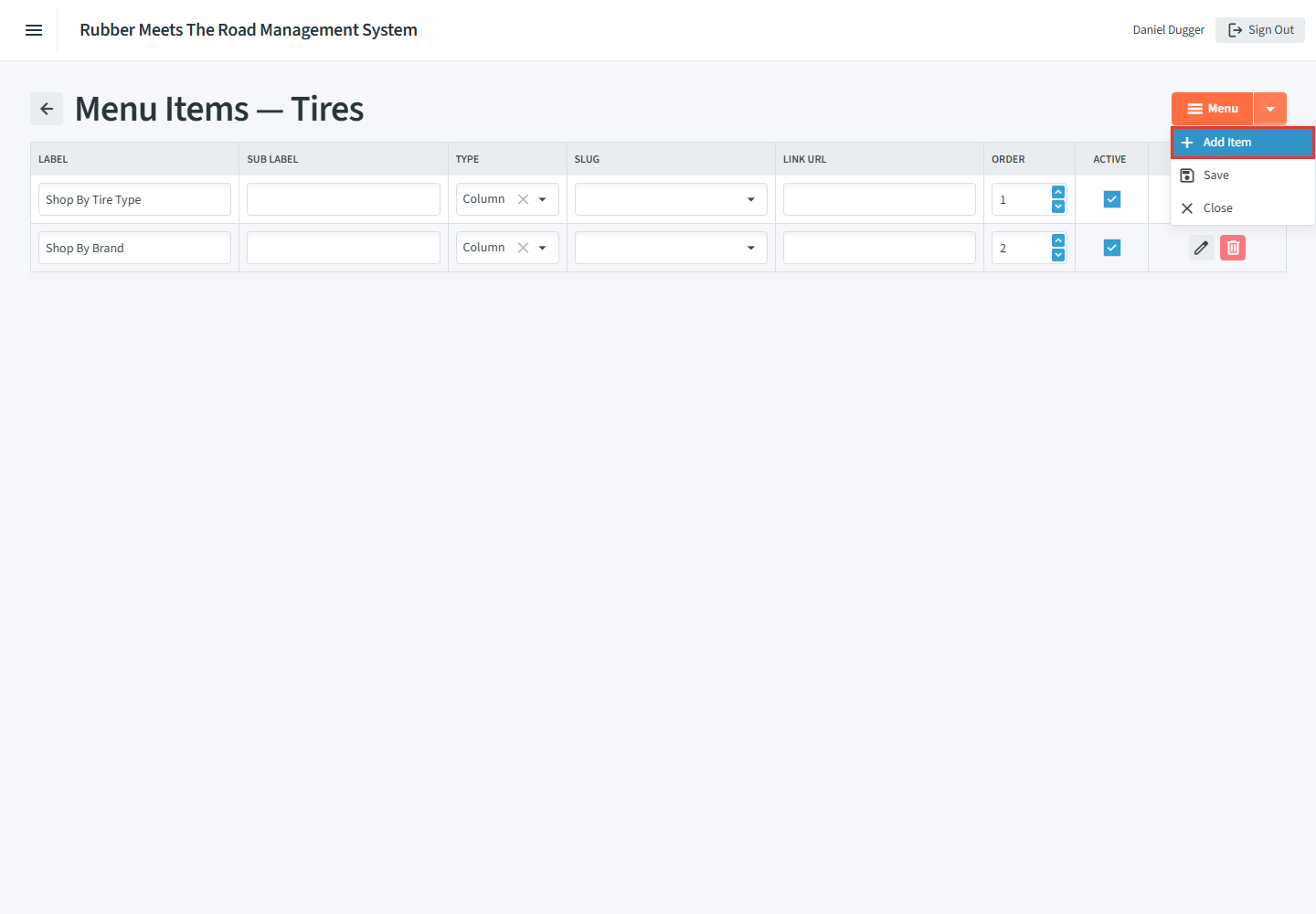
1. On the Menu Items screen, open the Menu and choose Add Item.
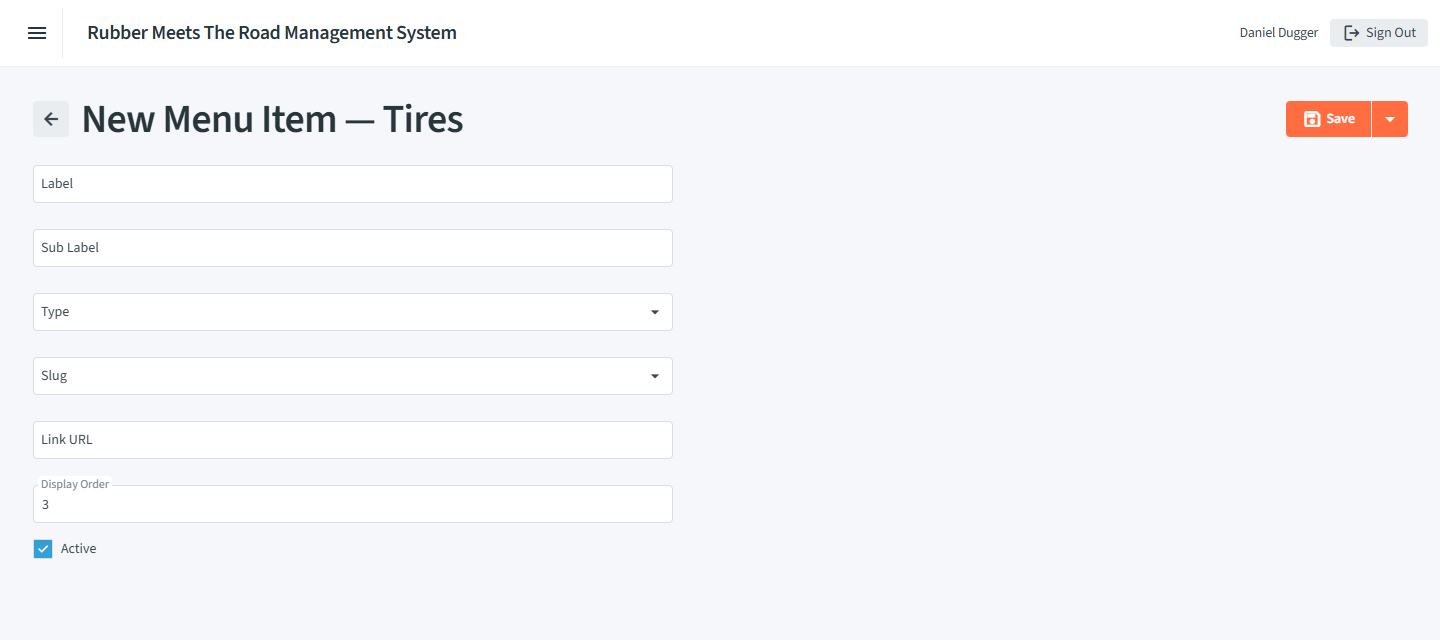
2. On the New Menu Item screen, enter the Label and an optional Sub Label, choose the Type, and choose the Slug the item opens or enter a Link URL. Display Order is filled in to place the item last, and Active is turned on. Then press Save.
Menu Sub Items
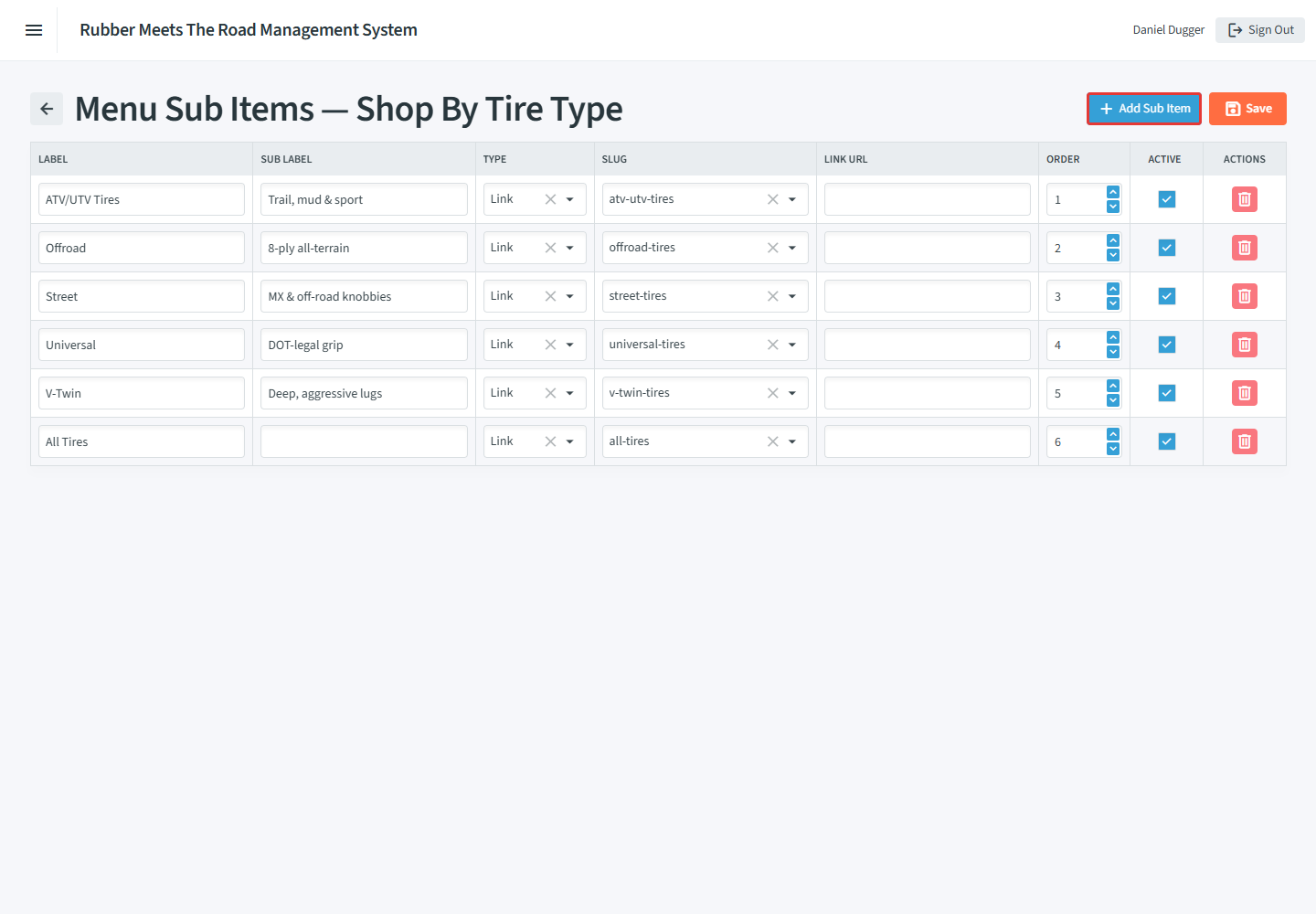
1. The Menu Sub Items screen works the same way. Press Add Sub Item to add a row, change the rows in the list, and press Save when you are done.
Was this article helpful?
That’s Great!
Thank you for your feedback
Sorry! We couldn't be helpful
Thank you for your feedback
Feedback sent
We appreciate your effort and will try to fix the article