Users are the people who can sign in to the Rubber Meets The Road Management System. You add users here, and the system emails each new user a link to set their own password. You never see or type another user's password. This chapter also shows how to choose the tiles on a user's dashboard.
A few things work the same way on every screen in this chapter:
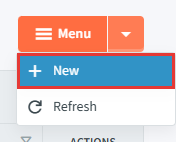
• The Menu button in the top right corner holds the screen's actions, such as Save, Delete and Close. Click the arrow on the right side of the Menu button to open it.
• The back arrow beside a screen's title returns to the list without saving.
Note: Names and email addresses are blurred in the pictures in this chapter.
Viewing Users
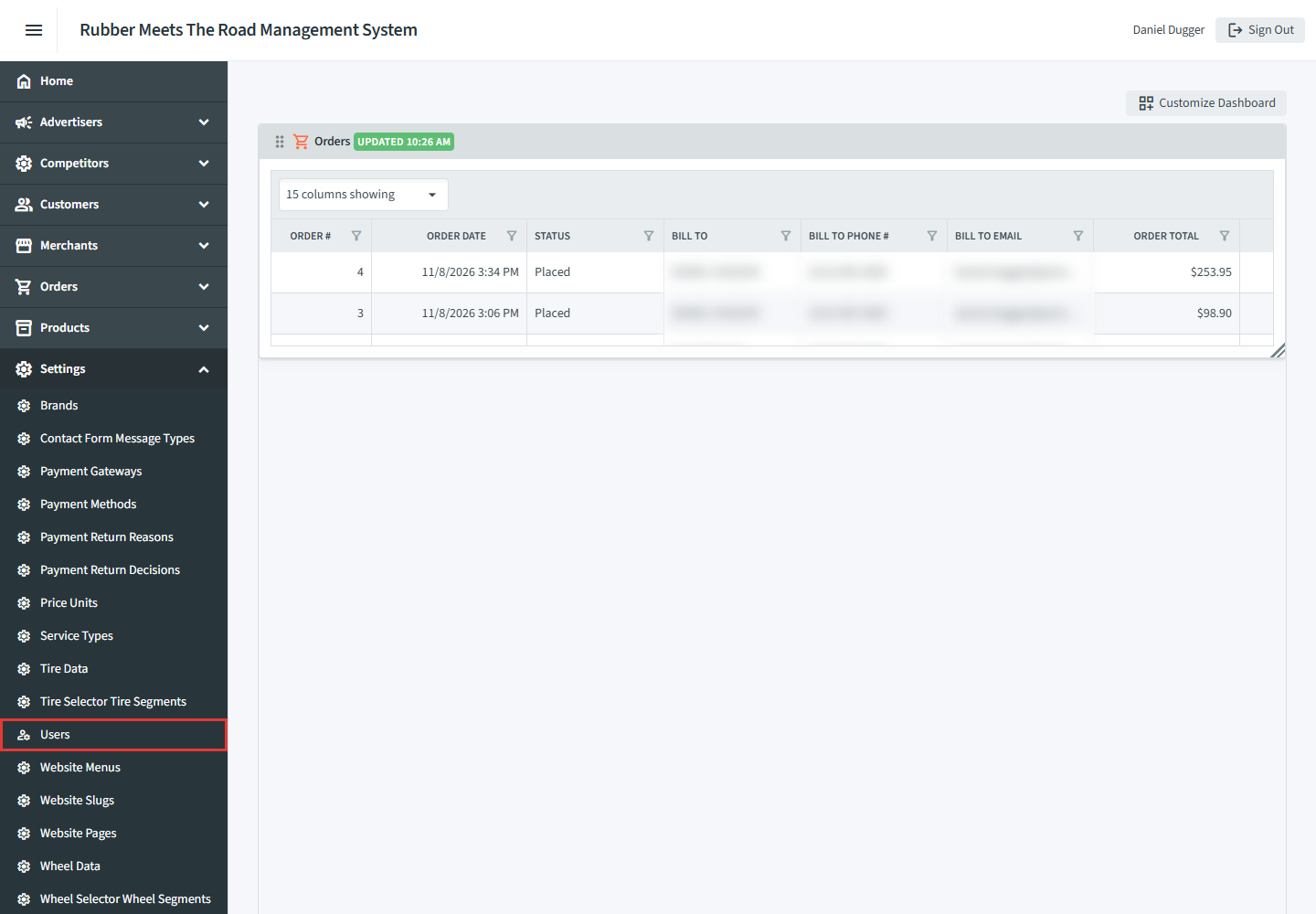
1. Click the menu button in the top left corner, click Settings to expand that section, and then click Users.
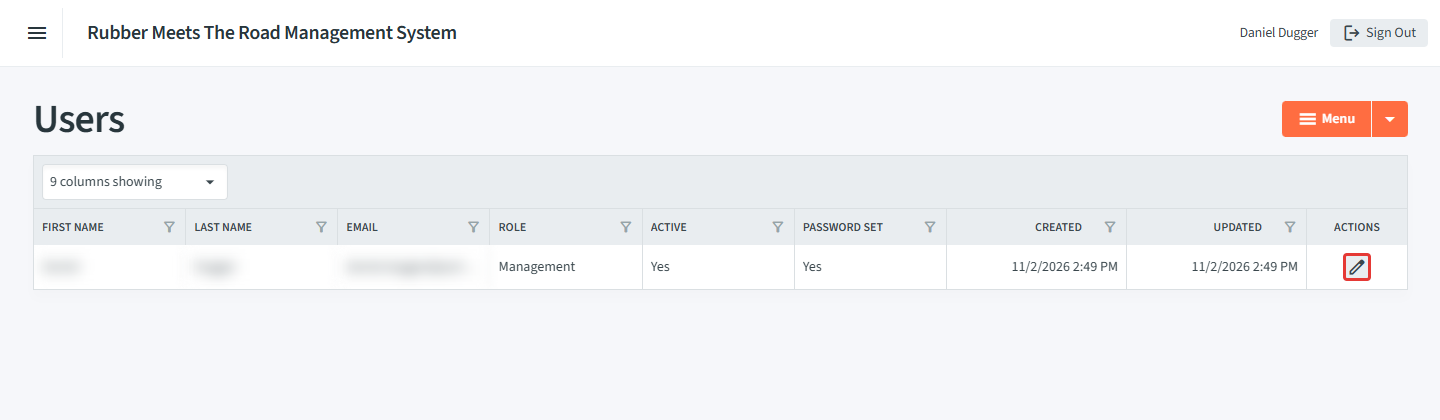
2. The Users list shows each user's name, email address and Role, whether they are Active, whether they have set their password (Password Set), and when they were created and last updated. Click the pencil icon to open a user.
Adding A User
1. On the Users list, open the Menu and choose New.
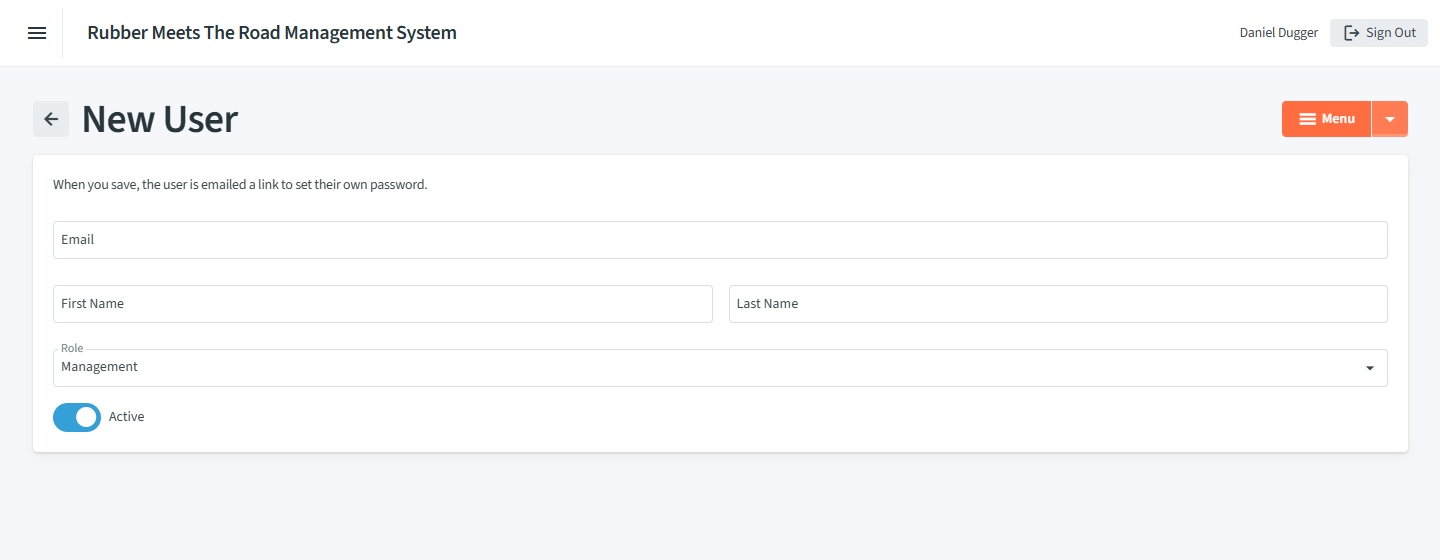
2. On the New User screen, enter the user's Email, First Name and Last Name, and choose their Role. Leave Active turned on so they can sign in.
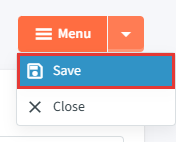
3. Open the Menu and choose Save. The user is emailed a link to set their own password, and you return to the Users list. If the email could not be sent, the user is still saved and a message tells you so; you can send it again later, as described below.
Setting a password from the emailed link is described in the Getting Started chapter.
Editing A User
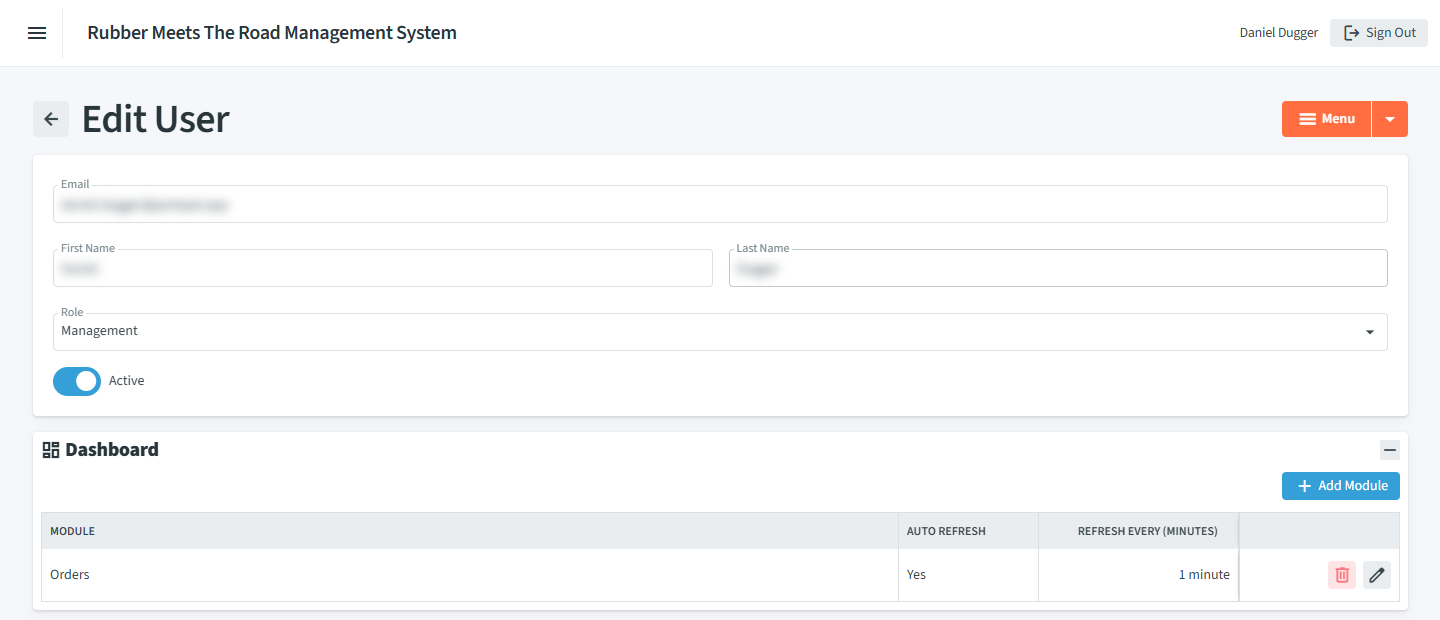
1. Open the user, as described in Viewing Users. Change their email address, name, role or Active as needed, then open the Menu and choose Save. A user who has not set a password yet shows the message "This user has not set a password yet."
Sending A Password Email
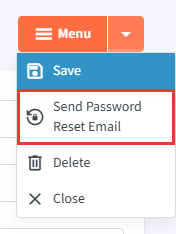
1. If the user has not set a password yet, open the Menu and choose Resend Invite Email to send them a new link. If they have set one and have forgotten it, choose Send Password Reset Email instead. The link lets them choose a new password.
Stopping A User From Signing In
To stop someone from signing in without deleting them, turn off Active and save. They cannot sign in again until Active is turned back on. This does not sign out someone who is already signed in.
Deleting A User
1. Open the user, open the Menu and choose Delete.
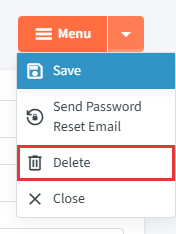
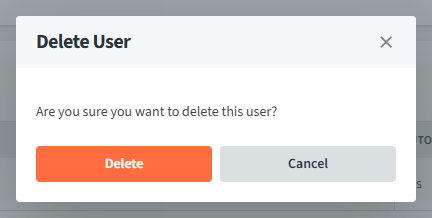
2. When the confirmation popup appears, press Delete to permanently delete the user, or Cancel to keep them.
A User's Dashboard
1. The Dashboard section of a user lists the tiles on their dashboard. It works the same way as Customize Dashboard, described in the Getting Started chapter: press Add Module to add a tile, use the pencil icon to change one, and the red trash can to remove one.

Was this article helpful?
That’s Great!
Thank you for your feedback
Sorry! We couldn't be helpful
Thank you for your feedback
Feedback sent
We appreciate your effort and will try to fix the article